


14 Tips Every Apple Watch Owner Should Know
Unlike other watches, the Apple Watch is a powerful device that can do a lot more than tell time and give you Apple notifications. With just your Apple Watch, you can pay for goods and services with it; It comes with a fashionable design that looks elegant. The apple watch can also help you track down your missing iPhone and so many other handy features.
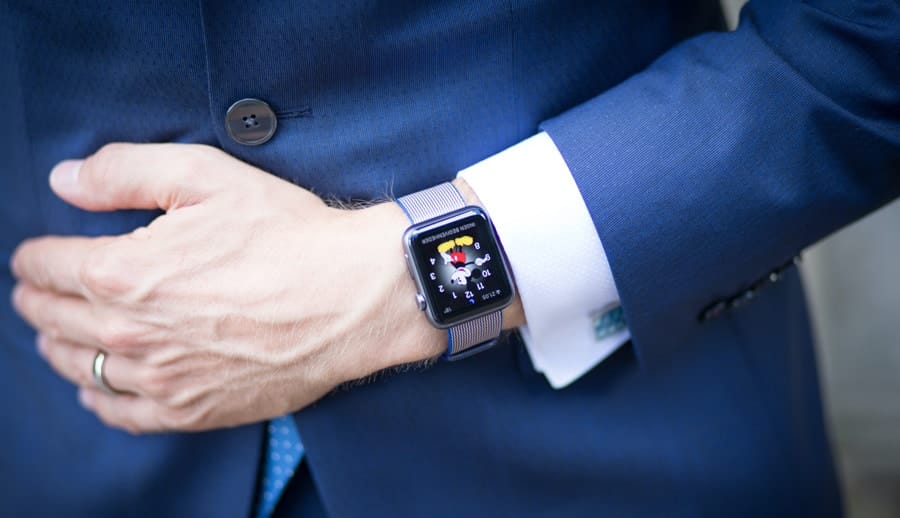
It is a handy gadget that is small in size. Depending on the model and where you are, this watch has many uses. The following are some of the tips and tricks that every Apple Watch owner should know.
1. Listen To Music and Podcasts
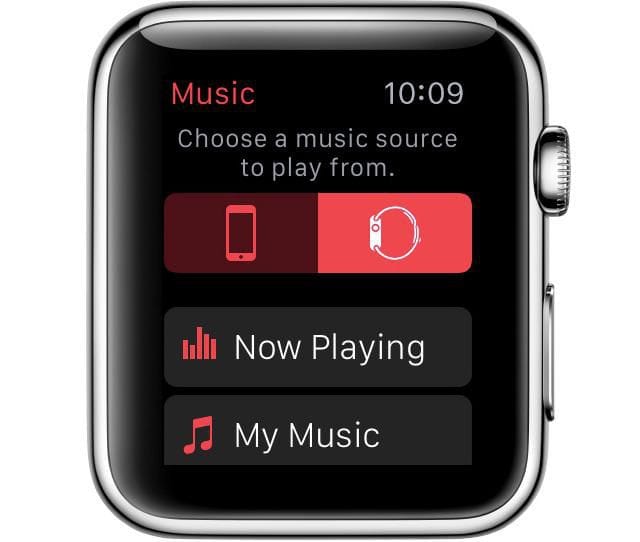
Play music from your Apple Watch. Image source: Apple
With an Apple Watch that has OS 4.1 or higher, you can listen to Apple Radio. You can also enjoy playlists or albums made on your phone. Podcasts on iHeartRadio, Pandora, and Spotify are also accessible to Apple Watch users.
To use it, connect your headphones, speaker, or earbuds via Bluetooth. Then, open the Apple Music app and choose the music you want to listen to. You can pause, resume, skip, replay and control the volume. To use music streaming services like Pandora and Spotify, you need to download their apps. You can find these apps in the App Store on your watch. The apps might vary, but the process is almost the same.
2. Monitor Heart Rate
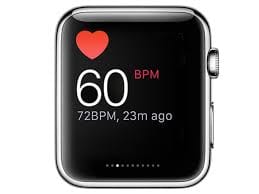
Monitoring your heart beats
The Apple Watch has an in-built Heart rate app that monitors your heart rate. To work it, open your app, and it will display your heart rate. So long as you wear the watch, and it is on display mode, your heart rate is measured periodically. To find your current, resting, and average heart rate, click the upper left arrow. You can also see your heart rate during specific activities.
You can also download other apps on the watch. These apps have more features and options than the built-in app.
3. Check Your Blood Oxygen Level
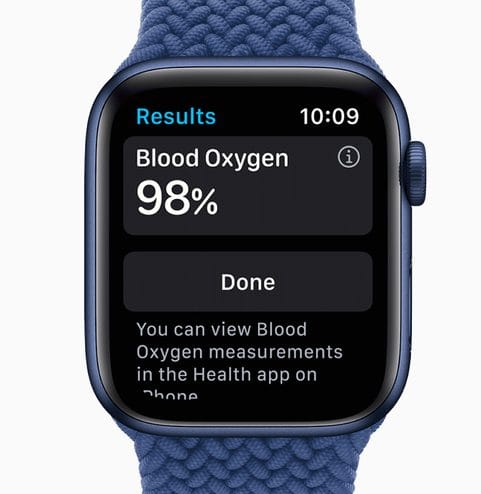
Measure your blood oxygen via Apple Watch. Image source: Apple
If you have an Apple Watch Series 6 with watchOS 7 or later, you have a built-in app. This app measures your blood oxygen level. With this app, you can tell whether your vital organs and brain are getting enough oxygen. Standard readings should range from 95 percent to 100 percent. Getting a lower percentage of oxygen in the blood might be caused by cardiac or pulmonary issues.
We do not recommend using the watch as your main source for blood oxygen levels. It’s best to see a doctor to be safe.
To use the Blood Oxygen Sensor, open the Apple Watch on your iPhone and click on the Blood Oxygen setting. Ensure the Blood Oxygen Measurements are on. You can use them to control when the sensor takes background readings. You can enable or disable this in Theatre Mode or Sleep Mode.
When taking a reading, ensure the watch is not too low and the band fits well. Keep your hand still during the task, then tap the ‘start’ button to start scanning. A 15-second countdown should begin; if the measurement is taken successfully, your blood oxygen level percentage will be displayed.
4. Time You When Washing Hands
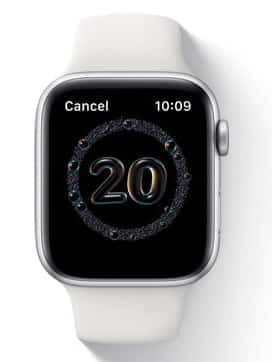
Count down for your handwashing. Image source: Apple.
Washing your hands is very crucial nowadays, given the ongoing pandemic. It is essential now more than ever to ensure your hands are germ-free by washing them frequently. For Apple Watch Users, this has been made easier and efficient. With a watchOS 7, you get a handwashing tool to detect when your hands are under running water and give you a 20-second countdown. You can enable this feature by going to the settings, then handwashing timer. The next time you wash your hands, there should be a timer that begins with a chime and thumbs up after the 20 seconds run out.
5. Protect You from Loud Noises
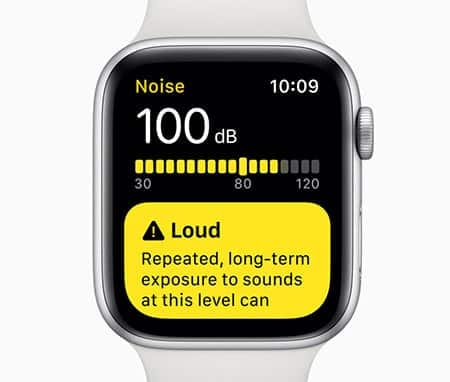
Useful alert to watch out for loud noises. Image source: Apple
Loud noises are unpleasant and can damage your ears and cause problems with hearing. A new feature of the WatchOS 6 Apple’s Noise app can help you out here. The watch will alert you if the noise around you above the average level. There is a certain decibel threshold which when noise is above that point, the app will send you a notification.
To set up this app, go to your settings, then the noise app. click on the Environmental Sound Measurements and allow it to measure sounds. You can set the decibel level by going back to the previous screen. Then, choose the noise notification option. A notification will appear to let you know when the noise is too loud.
6. Go To Your Last Used App
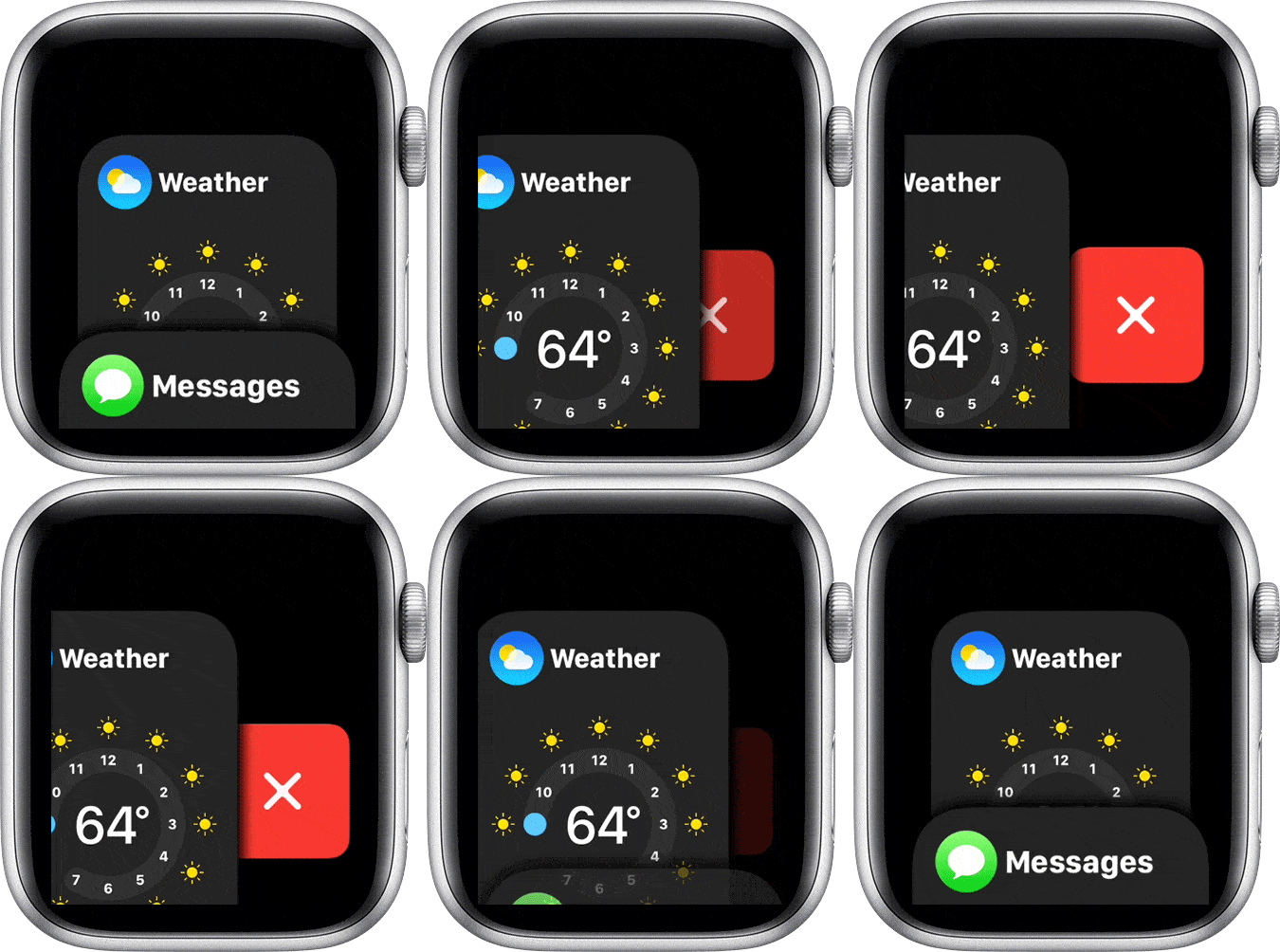
Access your last saved apps on the Apple Watch.
Flicking your wrist while wearing the Apple Watch will wake it up and show you the time. You can, however, let it go back to what it was doing before sleeping. To do this, go to settings, then general, and click on ‘wake screen.’ Scroll down to On-screen Raise Show Last. Here you have options, whether while in session, within the last 2 minutes of use, within an hour since last use, or always.
7. Mute Alerts with Your Palm

You can mute your notification with a palm
If your Apple Watch makes sounds and you want to stop it during class or a meeting, you can change the settings easily. If you are in a place where you want peace, cover the display with your palm. Hold it there for about three seconds to mute any notification sounds right away. To turn on this feature, go to your iPhone. Open the Apple Watch app. Click on My Watch. Then, go to Sounds and Haptics. Finally, select the cover to mute.
8. Sending Your Dictated Text as Audio
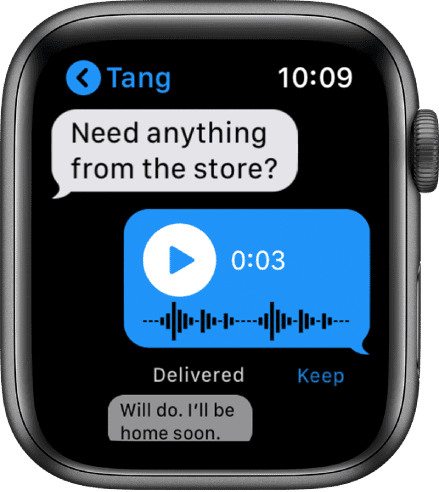
Sending the audio message via Apple Watch. Image source: Apple
When you reply to a message with your voice, you have two choices. Your Apple Watch can send it as a text or as an audio clip. Some people like to send audio clips. If you are one of them, you can set this up. Just go to the Apple Watch app on your iPhone. Then, go to My Watch, then Messages, and finally Audio Messages.
9. Hold Your Calls Until You Find Your iPhone
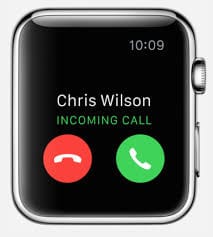
Accepting incoming calls with your Apple Watch without the need to reach out for your phone
Answering your phone on a watch is not always practical, and many people find it frustrating. With an Apple Watch, you can answer a call on your phone. Just tap the ‘Answer on the iPhone’ option. The call will be on hold until you find your iPhone. Meanwhile, the person calling you on the other end will hear a repeated sound until you answer.
10. Your Apple Watch as a TV Remote
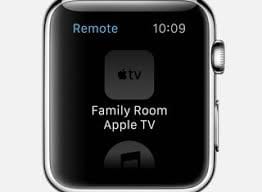
Control your TV with your Apple Watch. Image source: Apple
We can often not find our TV Remotes; it usually disappears, and looking for it isn’t very pleasant. You opt for your phone, but if it is not near your reach, you can use your Apple Watch remotely. To do this, go-to apps and look for the remote app. Click on Apple TV, swipe and tap around TV OS, and have access to your TV easily.
11. Unlock Your Mac Book with Apple Watch
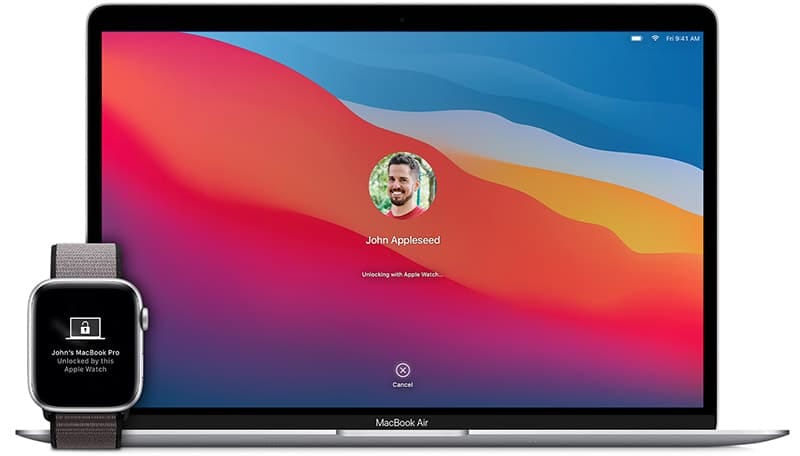
Unlock your MacBook Pro laptop with your Apple watch. Image source: Apple.
It can be tiring to type your password all the time, especially if it is long. But if you use a Mac, you don’t have to do that anymore. You can unlock it with your Apple Watch. To set it up, go to settings, click on security and privacy and then click “unlock with Apple Watch.”
You will then be required to turn on the passcode for your Apple Watch if you haven’t done it. After the set-up, the next time you log into your Mac, it will recognize the Apple Watch and automatically unlock it for you.
12. Prevent Water from Getting Into the Speaker
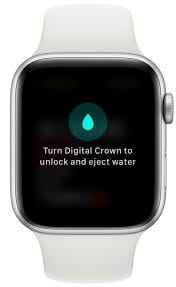
Unlock to reject water. Image source: Apple
Having an Apple Watch Series2 means you can go swimming with your watch on. You will, however, need to put the watch in water mode. To do this, swipe up to display the control center, tap the water drop icon; this will put the watch on lock mode and protect the screen. After the swim, unlock the watch by turning the digital crown and clear the water from the speaker.
13. View Photos from Your iPhone
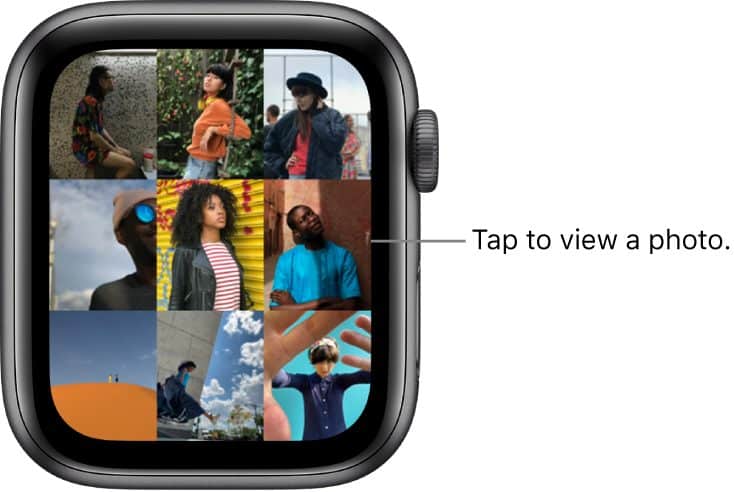
Browse and view your photos on Apple Watch. Image source: Apple
With your Apple Watch, you can view the photos on your phone. Your watch will display pictures you have tagged as favorites by default. You can change the synced album on your Apple Watch. Open the Watch app on your iPhone. Go to ‘My Watch.’ Find the entry for photos. Then, change the Synced Album to the one you want. Click on the Photos app on your Apple Watch and see thumbnails of the images you have synced. Turn the digital crown to zoom in. Browse through them by tapping right or left. To see a particular picture up-close, tap on it.
14. Track Your Sleep
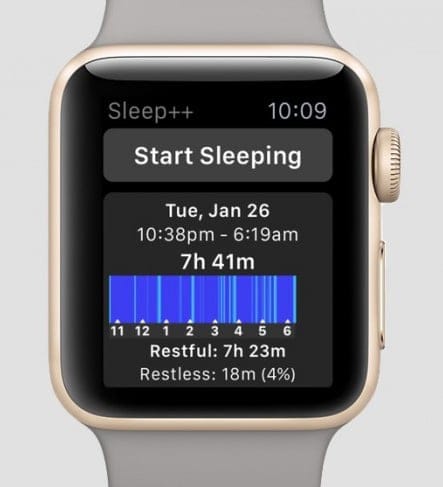
Tracking your sleep pattern. Image source: Apple
Apple watches have had third-party sleep tracking apps before, but the watchOS seven came with its in-built sleep tracker. The app can determine how long you have been asleep throughout the night. It aims at helping you get better sleep. The app analyses your sleeping patterns over an extended time. You can set up Sleep Mode that automatically turns on Do Not Disturb when you are asleep.
Conclusion
The Apple Smart Watch is an impressive gadget with many other features besides what we mentioned above. To use it to its fullest abilities requires you to know all there is to it. We hope this article has taught you something new about the Apple Watch. We also expect these tips will help you use your Apple Watch better.
References
- https://www.pcmag.com/how-to/20-tips-every-apple-watch-owner-should-know
- https://www.imore.com/28-apple-watch-tips-and-tricks-you-should-know
- https://www.europeanbusinessreview.com/7-tips-every-apple-watch-owner-should-know/
- https://www.cnet.com/how-to/apple-watch-tips-every-owner-should-know/
Written by The Original PC Doctor on 15/3/2021.