


Mechanical Hard Drive Data Recovery Near Me | HDD Failure Repair & Data Retrieval
Expert Data Recovery from Failed, Clicking, or Corrupted Mechanical Hard Drives – All Brands & Models
Hard disk drive data recovery
Is your mechanical hard drive making clicking sounds, grinding noises, or has it completely stopped working? Are your files suddenly inaccessible, or is your computer freezing when trying to access data? You’ve found the right data recovery specialists! The Original PC Doctor provides professional mechanical hard drive (HDD) data recovery services across Australia for all brands including Seagate, Western Digital, Toshiba, Hitachi/HGST, Samsung, and more. Whether you’re searching for “hard drive data recovery near me” or need urgent recovery from a clicking hard drive, our certified technicians use advanced clean room facilities and specialized equipment to recover your irreplaceable data safely.
Mechanical hard drives remain the workhorse of data storage for businesses, servers, external backup drives, and older computers. Brands like Seagate Barracuda, Western Digital Blue and Black, Toshiba P300, and Hitachi Deskstar are trusted by millions – but even the most reliable drives eventually fail. Hard drive failures can occur due to mechanical component wear (head crashes, spindle motor failure, actuator problems), electronic PCB failures, firmware corruption, bad sectors, or physical damage from drops or power surges. When a mechanical hard drive fails, the clicking “click of death” sound often signals catastrophic head failure requiring immediate professional intervention.
Our certified data recovery engineers have over 15 years of experience recovering data from every type of mechanical hard drive failure. We maintain state-of-the-art Class 100 clean room facilities essential for opening drives with physical damage, stock thousands of OEM donor parts for component replacement, and use proprietary recovery techniques that go far beyond consumer software solutions. From simple logical failures (accidental deletion, formatting) to severe physical damage (head crashes, platter scratches), we’ve successfully recovered data from tens of thousands of failed hard drives. Don’t risk permanent data loss with DIY recovery attempts or unreliable software – trust The Original PC Doctor’s proven expertise and No Data, No Fee guarantee.
🚨 Emergency HDD Recovery: 1300 723 628
💾 Get Free Recovery Quote
Common Mechanical Hard Drive Failure Symptoms
🔊 Unusual Noises – The “Click of Death” and Other Warning Signs
- Clicking sounds: Repetitive clicking or ticking noise (most common symptom of head failure)
- Grinding or scraping: Metal-on-metal sound indicating platter damage or debris inside drive
- Beeping sounds: High-pitched beeps often mean spindle motor seizure or stuck heads
- Buzzing or humming: Abnormal vibration sounds suggesting bearing failure
- Whirring then silence: Drive spins up but stops, indicating motor or firmware issues
- Rapid clicking: Very fast clicking (like a machine gun) typically indicates head parking failure
- Intermittent noises: Clicking that comes and goes, suggesting progressive head deterioration
💻 System Performance Issues Related to Hard Drive Failure
- Frequent system freezing: Computer locks up when trying to access files or load programs
- Blue Screen of Death (BSOD): Random crashes with error messages mentioning disk or I/O errors
- Extremely slow boot times: Computer takes 10+ minutes to start or gets stuck at loading screen
- Programs not responding: Applications freeze when trying to open or save files
- Computer won’t boot at all: “Operating system not found” or “No bootable device” errors
- Constant hard drive activity: Drive LED stays on continuously but system is unresponsive
- System hangs during startup: Computer freezes at BIOS splash screen or Windows logo
📁 File Access and Data Corruption Problems
- Files suddenly inaccessible: Documents, photos, or folders that won’t open or are “not found”
- Corrupted file errors: “File is corrupted and cannot be opened” messages
- Missing files or folders: Data that was there yesterday is now gone
- Disk read errors: “Cannot read from source disk” or “CRC error” messages
- Drive not recognized: Hard drive doesn’t appear in File Explorer, Disk Management, or BIOS
- RAW file system: Drive shows as RAW instead of NTFS or formatted state
- Request to format: Windows prompts “You need to format the disk before you can use it”
- Bad sector warnings: Operating system reports unreadable sectors or disk errors
⚠️ SMART (Self-Monitoring, Analysis, and Reporting Technology) Warning Signs
- SMART errors in BIOS: Boot-time warnings about impending drive failure
- Reallocated sector count: High number of bad sectors that have been remapped
- Current pending sector count: Sectors waiting to be remapped (data at risk)
- Uncorrectable sector count: Sectors that cannot be read or remapped
- Spin retry count: Drive having trouble spinning up platters
- Hardware ECC recovered: High error correction attempts indicating surface degradation
- Temperature warnings: Drive running excessively hot (over 50°C sustained)
- Read error rate: Increasing frequency of read errors
Self-Testing: How to Check Your Hard Drive Health
🔍 Step 1: Listen Carefully for Unusual Sounds
What to do: Power on your computer in a quiet environment and listen carefully to the hard drive. Place your ear near the computer case or external drive enclosure.
Normal sounds: Gentle whirring/humming during operation, occasional soft seeking sounds
Warning sounds: Any clicking, grinding, beeping, buzzing, or scraping noises
⚠️ CRITICAL: If you hear clicking or grinding, STOP using the drive immediately and contact us. Continued operation can cause permanent data loss!
🖥️ Step 2: Check BIOS Detection
What to do: Restart your computer and enter BIOS/UEFI (usually press F2, F10, DEL, or ESC during startup – watch for on-screen prompts)
Look for:
- Is the hard drive detected and listed with correct model number and capacity?
- Any error messages or warnings about the drive?
- SMART status showing as “OK” or “FAILED”?
Red flags: Drive not detected, wrong capacity shown, SMART failure message, or BIOS hangs when detecting drives
💿 Step 3: Run Diagnostic Software
Recommended free tools:
- CrystalDiskInfo: Shows SMART attributes, health status, and temperature (Windows)
- HDDScan: Surface scan, SMART monitoring, and read speed test
- HD Tune: Health check, error scan, and benchmark testing
- Victoria HDD: Advanced surface testing and bad sector mapping
- Manufacturer tools: Seagate SeaTools, Western Digital Data Lifeguard Diagnostic
⚠️ WARNING: Do NOT run surface scans or repair utilities if your drive is clicking or making unusual noises! This can cause additional damage. Skip to professional recovery immediately.
📊 Step 4: Interpret SMART Attributes
Critical attributes to monitor:
- Reallocated Sectors Count (ID 5): Should be 0 or very low. High numbers indicate surface degradation.
- Current Pending Sectors (ID 197): Should be 0. These are sectors the drive is trying to reallocate.
- Uncorrectable Sector Count (ID 198): Should be 0. These sectors cannot be recovered by the drive.
- Spin Retry Count (ID 10): Should be 0. Indicates motor or spindle problems.
- Temperature (ID 194): Should be under 45°C normally. Above 50°C sustained is concerning.
✅ Healthy drive: All critical SMART values at 0, health status “Good”, no warnings
⚠️ Failing drive: Any non-zero critical values, “Caution” or “Bad” health status, threshold warnings
🔧 Step 5: Windows Built-in Error Checking
What to do:
- Open File Explorer and right-click on your hard drive
- Select Properties > Tools tab
- Click “Check” under Error checking
- Allow Windows to scan for file system errors
⚠️ CAUTION: Only use this for drives that are still responsive and NOT making mechanical noises. This can take hours and may stress a failing drive.
All Mechanical Hard Drive Brands & Models We Recover From
Our data recovery specialists have successfully recovered data from virtually every mechanical hard drive ever manufactured. We maintain an extensive library of OEM parts, recovery tools, and technical documentation for all brands. Below is our comprehensive coverage:
💿 Seagate Hard Drives – All Models
Desktop & Internal Drives:
- Barracuda Series: Barracuda Compute, Barracuda Pro, Barracuda 7200 rpm (all generations), Barracuda LP (Low Power), Barracuda Green, Barracuda XT
- IronWolf Series: IronWolf (NAS drives), IronWolf Pro, IronWolf Health Management
- FireCuda Series: FireCuda SSHD (Hybrid drives with SSD cache)
- Desktop HDD: Desktop HDD, Desktop SSHD
- SkyHawk Series: SkyHawk Surveillance drives (24/7 recording optimized)
- Exos Series: Exos X (enterprise), Exos E (enterprise value), Exos 7E2, 7E8, 7E10
External & Portable Drives:
- Backup Plus Series: Backup Plus Slim, Backup Plus Portable, Backup Plus Desktop, Backup Plus Hub, Backup Plus Ultra Touch
- Expansion Series: Expansion Portable, Expansion Desktop
- One Touch Series: One Touch Portable, One Touch Desktop, One Touch Hub
- FreeAgent Series: FreeAgent Go, FreeAgent GoFlex, FreeAgent Desk, FreeAgent Pro (legacy)
- Maxtor Branded: Maxtor M3, OneTouch (Seagate acquired Maxtor)
Enterprise & Server Drives:
- Constellation Series: Constellation ES, ES.2, ES.3, CS (legacy enterprise)
- Savvio Series: Savvio 10K, 15K (SAS enterprise)
- Cheetah Series: Cheetah 10K, 15K (high-performance SCSI/SAS)
💿 Western Digital (WD) Hard Drives – All Models
Desktop & Internal Drives:
- WD Blue: WD Blue (mainstream desktop), WD Blue SATA (all capacities)
- WD Black: WD Black Performance Desktop, WD Black Gaming drives
- WD Red: WD Red (NAS), WD Red Plus, WD Red Pro (NAS Pro)
- WD Purple: WD Purple Surveillance drives
- WD Gold: WD Gold Datacenter drives (enterprise)
- WD Green: WD Green (low power, discontinued)
- WD RE (Raid Edition): WD RE2, RE3, RE4 (enterprise RAID, legacy)
- WD Caviar: Caviar Blue, Caviar Green, Caviar Black, Caviar SE (older generations)
- WD VelociRaptor: 10,000 RPM high-performance drives (discontinued)
External & Portable Drives:
- WD Elements: Elements Portable, Elements Desktop, Elements SE
- WD My Passport: My Passport (regular), My Passport Ultra, My Passport SSD, My Passport Wireless, My Passport for Mac
- WD My Book: My Book Desktop, My Book Duo (RAID), My Book Live (NAS)
- WD Easystore: Easystore Desktop (Best Buy exclusive)
- WD My Cloud: My Cloud Home, My Cloud EX2/EX4 (NAS devices)
Legacy WD Drives:
- WD Passport Essential: Older Passport models
- WD My Book Essential: Legacy desktop external drives
- WD Sharespace: Network storage (discontinued)
💿 Toshiba Hard Drives – All Models
Desktop Drives:
- P300 Series: P300 Desktop Hard Drive (mainstream)
- X300 Series: X300 Performance Hard Drive (high-capacity)
- N300 Series: N300 NAS Hard Drive
- S300 Series: S300 Surveillance Hard Drive
- DT Series: Desktop DT01ACA (3.5″ desktop drives)
Laptop/Notebook Drives (2.5″):
- L200 Series: L200 Laptop Hard Drive
- MQ Series: MQ01, MQ02, MQ03, MQ04 (mobile drives)
External Drives:
- Canvio Series: Canvio Basics, Canvio Advance, Canvio Ready, Canvio Slim, Canvio Premium, Canvio Gaming, Canvio Flex
- Stor.E Series: Stor.E Basics, Stor.E Alu, Stor.E Partner (legacy)
Enterprise:
- MG Series: MG04, MG06, MG07, MG08, MG09 (Enterprise Capacity)
- AL Series: AL14, AL15 (Enterprise Performance SAS)
💿 Hitachi/HGST (Now Western Digital) – All Models
Desktop Drives:
- Deskstar Series: Deskstar 7K1000, 7K2000, 7K3000, 7K4000, Deskstar NAS
- Ultrastar Series: Ultrastar 7K2, 7K3, 7K4, 7K6, He6, He8, He10, He12, He14 (helium-filled enterprise)
- CinemaStar Series: CinemaStar (AV/surveillance optimized)
Laptop Drives:
- Travelstar Series: Travelstar 5K1000, 5K500, 7K500, 7K750, 7K1000, Z5K500, Z7K500
External Drives:
- Touro Series: Touro Mobile, Touro Desk, Touro Pro, Touro S (legacy)
- SimpleDrive: SimpleDrive Mini, SimpleDrive (legacy)
- LifeStudio: LifeStudio Mobile, LifeStudio Desktop (legacy)
Enterprise:
- Ultrastar DC: DC HC310, HC320, HC520, HC530 (data center drives)
💿 Samsung Hard Drives – All Models
Desktop Drives:
- SpinPoint F Series: SpinPoint F1, F2, F3, F4 (mainstream desktop)
- SpinPoint HD Series: HD103, HD153, HD203, HD502, HD753
- EcoGreen Series: EcoGreen F2, F3, F4 (low power)
Laptop Drives:
- SpinPoint M Series: SpinPoint M5, M6, M7, M8, M9T (2.5″ notebook)
- SpinPoint MP Series: SpinPoint MP0402H, MP0804H
External Drives:
- S Series: S1 Portable, S2 Portable, S3 Station
- D Series: D3 Station (desktop external)
- M Series: M2 Portable, M3 Portable (Seagate now produces Samsung-branded externals)
Note: Samsung exited the hard drive business in 2011 (sold to Seagate), but we still recover data from all Samsung HDDs.
💿 Maxtor Hard Drives – All Models (Now Seagate)
Desktop Drives:
- DiamondMax Series: DiamondMax 10, 16, 20, 21, 22, 23 (consumer desktop)
- MaXLine Series: MaXLine II, III, Pro 500 (enterprise)
- QuickView: QuickView drives (discontinued)
External Drives:
- OneTouch Series: OneTouch II, III, IV, OneTouch Mini
- Basics: Basics Desktop, Basics Portable
- BlackArmor: BlackArmor Backup (secure external)
Note: Seagate acquired Maxtor in 2006. We recover from all legacy Maxtor drives.
💿 Fujitsu Hard Drives
- MHY Series: MHY2 BH (laptop drives)
- MHZ Series: MHZ2 BT, MHZ2 CJ (2.5″ mobile)
- MPG Series: MPG (enterprise SAS)
- MBA Series: MBA (enterprise SCSI)
💿 IBM/Lenovo Hard Drives
- Deskstar Series: Original IBM Deskstar (before HGST acquisition)
- Travelstar Series: Original IBM Travelstar (laptop drives)
- Ultrastar Series: IBM Ultrastar (enterprise, now HGST/WD)
💿 Quantum Hard Drives (Legacy)
- Fireball Series: Fireball, Fireball Plus, Fireball CR, Fireball LCT
- Bigfoot Series: Bigfoot (5.25″ drives)
💿 Other Brands We Support
- Crucial: Crucial X (external drives)
- LaCie: Rugged, d2, 2big, 5big, Porsche Design drives
- G-Technology: G-Drive, G-RAID, ArmorATD (now part of WD)
- Buffalo: DriveStation, MiniStation, LinkStation
- Iomega: eGo, Prestige, Select (discontinued, now Lenovo)
- Verbatim: Store ‘n’ Go, Store ‘n’ Save
- Transcend: StoreJet (portable and desktop external drives)
- ADATA: HD series external drives
- Silicon Power: Armor and Bolt series
Types of Mechanical Hard Drive Failures We Recover From
🔧 Physical/Mechanical Failures (Clean Room Required)
Head Crash / Read-Write Head Failure:
- Symptoms: Clicking sound, drive not detected, or very slow access
- Cause: Read/write heads physically touching or damaged, can’t read platters
- Recovery: Requires clean room opening, head stack assembly (HSA) replacement from donor drive
- Success Rate: 85-95% if addressed quickly before additional platter damage
Spindle Motor/Motor Driver Failure:
- Symptoms: Beeping sounds, drive doesn’t spin, no whirring noise
- Cause: Motor seized, bearing failure, or motor driver chip failure on PCB
- Recovery: Motor replacement or platter transplant in clean room environment
- Success Rate: 70-85% depending on severity and whether platters are damaged
Platter Damage / Surface Scratches:
- Symptoms: Grinding or scraping sounds, partial data access, severe clicking
- Cause: Heads crashed onto platters causing physical scoring of magnetic surface
- Recovery: Advanced imaging techniques in clean room, skip damaged areas, reconstruct data
- Success Rate: 50-80% depending on extent of damage; some data loss likely
Actuator Arm Malfunction:
- Symptoms: Repetitive seeking sounds, drive detected but can’t access data
- Cause: Actuator arm stuck or voice coil motor failure
- Recovery: Clean room repair or component replacement
- Success Rate: 80-90%
Dropped or Physically Damaged Drives:
- Symptoms: Drive not working after being dropped, impact damage visible
- Cause: Shock damage causing head misalignment, platter damage, or bearing failure
- Recovery: Assessment in clean room, possible platter transplant or head replacement
- Success Rate: 60-85% depending on drop height and impact severity
⚡ Electronic/PCB Failures (No Clean Room Required)
PCB (Printed Circuit Board) Failure:
- Symptoms: Drive completely dead, no power, burning smell, or visible chip damage
- Cause: Power surge, ESD damage, faulty USB port, or component failure on board
- Recovery: PCB swap with matching board, ROM chip transfer, TVS diode replacement
- Success Rate: 90-95% if platters undamaged
Firmware Corruption:
- Symptoms: Drive detected with wrong capacity (e.g., 0MB or 33MB), very slow, or unresponsive
- Cause: Corrupted firmware modules, service area damage, or failed firmware update
- Recovery: Specialized firmware repair using manufacturer-specific tools and techniques
- Success Rate: 85-95%
Bad Sectors / Surface Degradation:
- Symptoms: Slow performance, files won’t open, increasing bad sector count in SMART
- Cause: Magnetic material degradation, weak sectors unable to hold data reliably
- Recovery: Sector-by-sector imaging with specialized tools, skip unreadable sectors
- Success Rate: 80-95% depending on extent of degradation
💾 Logical Failures (File System/Data)
Accidental Deletion or Formatting:
- Symptoms: Files gone after deletion, emptied recycle bin, or formatted drive
- Cause: User error, accidental quick format, or delete operation
- Recovery: File carving and recovery software, metadata reconstruction
- Success Rate: 95-99% if no data overwritten
File System Corruption (NTFS, FAT32, exFAT, HFS+):
- Symptoms: Drive shows as RAW, “format disk” prompts, inaccessible file system
- Cause: Improper shutdown, power loss during write, malware, or bad sectors in file system areas
- Recovery: File system repair and reconstruction, manual partition recovery
- Success Rate: 90-98%
Partition Table Damage:
- Symptoms: Partitions missing, unallocated space shown, disk shows as uninitialized
- Cause: Partition table corruption, MBR/GPT damage, or partitioning software errors
- Recovery: Partition reconstruction, boot sector repair
- Success Rate: 95-99%
🔥 Environmental/External Damage
Water/Liquid Damage:
- Symptoms: Drive exposed to water, coffee spill, flood damage
- Cause: Liquid causing short circuits, corrosion, or contamination inside drive
- Recovery: Professional cleaning, corrosion removal, platter cleaning in clean room if needed
- Success Rate: 60-85% depending on liquid type and exposure time
Fire/Heat Damage:
- Symptoms: Drive exposed to fire, extreme heat, or smoke
- Cause: Fire damage, thermal expansion, or smoke residue contamination
- Recovery: Specialized recovery in clean room, assessment of platter integrity
- Success Rate: 40-70% depending on heat exposure and platter condition
Why Choose The Original PC Doctor for Hard Drive Data Recovery?
✅ State-of-the-Art Class 100 Clean Room Facilities
Mechanical hard drives with physical damage require opening in a clean room environment to prevent microscopic dust particles from causing additional platter damage. Our Class 100 clean rooms maintain fewer than 100 particles (0.5 microns or larger) per cubic foot of air – essential for safe drive opening and component replacement. We follow strict protocols including laminar airflow, HEPA filtration, positive pressure, and proper gowning procedures. This professional infrastructure is what separates successful recovery from permanent data loss.
✅ Extensive OEM Donor Parts Inventory
Physical hard drive recovery often requires replacement components – heads, platters, motors, or PCBs. We maintain one of Australia’s largest inventories of OEM donor drives spanning all manufacturers and generations. This includes hard-to-find legacy models from Maxtor, IBM, Quantum, and early Seagate/WD drives. Having the correct donor parts immediately available means faster recovery times and higher success rates, especially for discontinued or vintage drives.
✅ No Data, No Fee Guarantee
We only charge if we successfully recover your data. If our engineers cannot retrieve your files, you pay nothing for the recovery attempt – only a nominal diagnostic fee. This guarantee demonstrates our confidence in our capabilities and ensures you have nothing to lose. We’ll provide a detailed assessment of recoverability and exact pricing before starting any paid recovery work, with no surprises or hidden fees.
✅ 15+ Years of Hard Drive Recovery Experience
Our certified data recovery engineers have successfully recovered data from over 50,000 failed hard drives spanning every major failure type. We’ve handled everything from simple accidental deletions to catastrophic head crashes, fire-damaged drives, and complex firmware failures. This extensive experience means we’ve encountered virtually every failure scenario and know the optimal recovery approach for each brand and model. We stay current with manufacturer changes, new drive technologies, and emerging recovery techniques.
✅ Advanced Recovery Tools & Proprietary Techniques
We utilize professional-grade recovery equipment far beyond consumer software solutions: PC-3000 (industry-standard hardware/software suite for low-level drive access), specialized firmware repair tools for Seagate, WD, and other manufacturers, custom head alignment jigs, platter transplant equipment, and proprietary recovery algorithms developed over years of research. These tools allow us to recover data that other services and software cannot touch.
✅ Secure, Confidential Data Handling
Your data privacy and security are paramount. All recovered data is handled under strict confidentiality agreements with restricted facility access, encrypted data transfer protocols, and secure storage. We can sign NDAs for sensitive business or personal data. Upon completion, we securely wipe all working copies and can provide certificates of data destruction if required. Our facility includes monitored security systems, access controls, and compliance with data protection regulations.
✅ Same-Day Emergency Service Available
We understand that some data is time-critical. Our emergency rapid response service offers same-day assessment and priority processing for urgent cases. Business-critical drives get immediate attention with our technicians working extended hours if needed. We serve clients throughout Australia with same-day service in major cities, courier pickup available, and expedited processing for mission-critical recoveries.
✅ Free Diagnostic Evaluation
Unsure if your data is recoverable? We offer free diagnostic evaluation (small shipping/handling fee may apply for mail-in services). Our engineers will assess the failure type, estimate recovery chances, and provide a detailed quote before any recovery work begins. There’s no obligation – if you decide not to proceed, we’ll return your drive at no charge.
12 Essential Facts About Mechanical Hard Drives & Data Recovery 🎯
💿 1. How Mechanical Hard Drives Actually Work
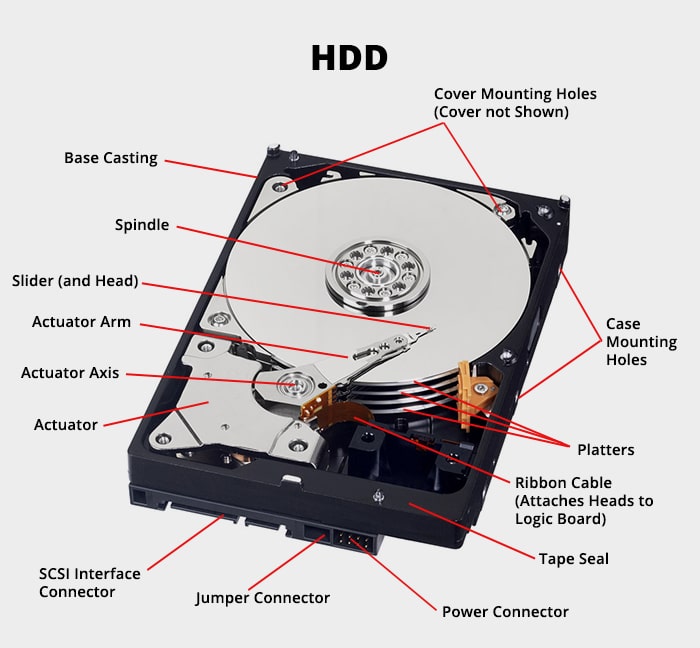
A mechanical hard drive (HDD) consists of spinning platters coated with magnetic material, read/write heads mounted on actuator arms that fly nanometers above the platter surface, and a spindle motor spinning at 5,400-15,000 RPM. Data is stored magnetically on the platters in microscopic regions. The heads can position over any location in milliseconds to read or write data. This mechanical precision is why HDDs are vulnerable to shock, wear, and component failures – but also why they remain cost-effective for mass storage with capacities now reaching 20TB+ per drive.
🔊 2. The “Click of Death” Explained
The infamous clicking sound occurs when read/write heads attempt to read data but fail, causing the drive’s internal controller to repeatedly reset and retry the operation – each retry produces one click. This usually indicates the heads have crashed (touched the platters), become misaligned, or failed mechanically. The clicking is the drive’s desperate attempt to recalibrate and resume normal operation. This sound is an emergency warning – continued operation can quickly lead to platter damage and permanent data loss. Power down immediately!
⏱️ 3. Hard Drive Failure Rates Peak in Year 1 and After Year 3
Research by BackBlaze analyzing millions of drives shows a “bathtub curve” failure pattern: higher failure rates in the first year (manufacturing defects), low rates in years 2-3 (reliable operation), then increasing failures after 3-4 years (wear-out phase). By year 5, annual failure rates can exceed 10% for some models. Consumer drives typically last 3-5 years with normal use; enterprise drives 5-7 years. Factors affecting lifespan include operating temperature, power-on hours, read/write cycles, and operating environment.
🌡️ 4. Temperature Kills Hard Drives
For every 5°C increase in operating temperature above 40°C, hard drive failure rates approximately double. Drives running constantly at 50°C+ have significantly shorter lifespans. Ideal operating range is 25-40°C. High temperatures cause lubricant breakdown in bearings, thermal expansion of components affecting tolerances, accelerated wear on mechanical parts, and degradation of magnetic properties. Ensure proper case ventilation, don’t block cooling vents on external drives, and monitor drive temperatures with SMART monitoring software.
🧲 5. Data Isn’t Actually “Deleted” Until Overwritten
When you delete a file or format a drive, the operating system simply marks those sectors as available for reuse – the actual magnetic data remains intact until new data physically overwrites those locations. This is why deleted file recovery is often possible. However, once data is overwritten, recovery becomes impossible because the original magnetic patterns are destroyed. This is also why immediate action after accidental deletion is critical – the sooner you stop using the drive, the better the recovery chances.
🔬 6. Clean Room Recovery Isn’t Optional for Physical Failures
A single human hair is approximately 70 microns in diameter. Hard drive heads fly just 3-5 nanometers (0.003-0.005 microns) above platters spinning at 5,400-7,200 RPM. This means a dust particle or smoke residue can act like a boulder causing additional head crashes and platter scoring. Opening a drive in normal air conditions almost guarantees contamination and reduced recovery success. Class 100 clean rooms (fewer than 100 particles of 0.5+ microns per cubic foot) are industry standard for physical drive recovery.
💰 7. Hard Drives Remain Dominant for Large-Capacity Storage
Despite SSD advances, mechanical hard drives still dominate for high-capacity storage due to cost per gigabyte. A 20TB HDD costs around $400-500 (2-2.5¢/GB), while a 20TB SSD would cost $2,000+ (10¢+/GB). For data centers, NAS systems, backup solutions, and bulk storage, HDDs remain the economical choice. Current roadmaps show HDDs scaling to 50TB+ using technologies like HAMR (Heat-Assisted Magnetic Recording) and MAMR (Microwave-Assisted Magnetic Recording), ensuring HDDs remain relevant for years to come.
⚠️ 8. SMART Monitoring Can Predict Many Failures
Studies show SMART (Self-Monitoring, Analysis, and Reporting Technology) attributes can predict 55-70% of hard drive failures before they occur. Key predictive attributes include increasing reallocated sector counts, current pending sectors, uncorrectable errors, spin retry counts, and temperature spikes. Monitoring these values with tools like CrystalDiskInfo allows proactive replacement before catastrophic failure. However, 30-45% of failures occur suddenly without SMART warnings (sudden head crashes, PCB failures, motor seizures), which is why backups remain essential.
🔄 9. Firmware is Critical – And Often Overlooked
Hard drive firmware is the embedded software controlling all drive operations – from motor speed to head positioning to error correction. Firmware corruption can make drives appear as wrong capacity (32MB LBA bug), fail to initialize, or become extremely slow. Each manufacturer uses proprietary firmware formats and service area structures. Professional recovery requires manufacturer-specific tools to access and repair firmware modules. DIY firmware recovery attempts can brick drives permanently, making data unrecoverable even by professionals.
🏭 10. Not All Drive Brands Are Actually Different Companies
The hard drive industry has consolidated dramatically. Seagate acquired Maxtor (2006) and Samsung’s HDD division (2011). Western Digital acquired Hitachi GST/HGST (2012). Toshiba acquired parts of Fujitsu’s HDD business (2009). Today, only three major HDD manufacturers remain: Seagate, Western Digital (including WD, HGST brands), and Toshiba. This consolidation affects parts availability, recovery techniques, and the specialized knowledge needed for each generation and manufacturing facility’s drives.
🎲 11. Recovery Success Depends on Quick Action
Time is critical in data recovery. A clicking drive can develop additional bad sectors, platter scratches, and contamination within hours of continued operation. Each power-on cycle with a failing head risks further damage. Drives with minor issues today can become unrecoverable tomorrow. Best practices: stop using the drive immediately upon hearing unusual sounds or experiencing failures, don’t attempt multiple recovery software scans (can overwrite recoverable data), don’t open the drive yourself, don’t freeze the drive (old myth that rarely works and can cause condensation damage), and contact professionals as soon as possible.
📦 12. External Drives Are Just Internal Drives in Enclosures
Most external hard drives are standard internal drives (Seagate Barracuda, WD Blue, etc.) housed in USB enclosures with a SATA-to-USB bridge chip. This is good news for recovery – if the enclosure or USB interface fails, the drive itself may be fine and can be removed and connected directly via SATA. However, some newer external drives (especially WD My Passport and some Seagate models) have the USB interface integrated directly on the drive’s PCB, making them more challenging to recover if the USB controller fails. Always know which type you have.
What to Do When Your Hard Drive Fails – Critical Steps
🛑 STOP Using the Drive Immediately
As soon as you notice clicking, grinding, unusual noises, or inability to access files – STOP. Power down the computer or disconnect the external drive. Do NOT:
- Keep trying to access files (this can cause additional damage)
- Run CHKDSK, disk repair utilities, or file recovery software on mechanically failing drives
- Attempt to format or initialize the drive
- Open the drive yourself (even to “just look”)
- Hit, shake, or drop the drive trying to “fix” it
- Put the drive in the freezer (outdated technique that rarely works)
📞 Contact Professional Data Recovery Immediately
Time is critical. The sooner professionals can assess and begin recovery, the better your chances. Call us at 1300 723 628 for immediate consultation. We’ll guide you on next steps and can arrange same-day pickup for emergency cases.
📝 Document What Happened
Note the symptoms, when the problem started, any sounds you heard, recent events (drops, power surges), and what data is most critical. This information helps our engineers diagnose the issue and plan the recovery approach.
🚚 Safe Transport to Recovery Facility
If shipping or transporting the drive:
- Pack in original drive packaging if available
- Use anti-static bags or wrap in aluminum foil to prevent ESD damage
- Surround with bubble wrap or foam (minimum 2 inches on all sides)
- Use a sturdy box clearly marked “FRAGILE – HARD DRIVE”
- Don’t ship drives in padded envelopes (insufficient protection)
- Consider courier service for valuable data rather than regular post
Get Your Critical Data Back Today – Contact Us Now!
Don’t risk permanent data loss from a failed mechanical hard drive. Whether your Seagate Barracuda is clicking, your WD My Passport won’t mount, your Toshiba external drive was dropped, or your old Hitachi Deskstar suddenly stopped working – we have the expertise, facilities, and parts to recover your irreplaceable data safely.
The Original PC Doctor has successfully recovered data from tens of thousands of mechanical hard drives spanning every manufacturer, model, and failure type. From family photos and videos to critical business documents, financial records, and irreplaceable work – we understand how valuable your data is. Our Class 100 clean room facilities, extensive parts inventory, advanced recovery tools, and 15+ years of experience give us the highest success rates in the industry.
We offer free diagnostic evaluation with no-obligation quotes, transparent fixed pricing with no hidden fees, and our exclusive No Data, No Fee guarantee – you only pay if we successfully recover your files. Same-day emergency service is available for business-critical situations. We serve all of Australia with same-day service in major cities and secure shipping options for regional clients.
Contact The Original PC Doctor at 1300 723 628 or visit www.thepcdoctor.com.au for professional mechanical hard drive data recovery assistance.
🚨 Emergency Recovery Now: 1300 723 628
📋 Free Diagnostic Evaluation
Drive Beyond Recovery? In rare cases where physical damage is too severe or recovery is not economically viable, we can help with secure data destruction and guidance on proper disposal. For environmentally responsible recycling of old hard drives and electronic equipment, contact Electronic Recycling Australia.