


Gaming Computer Repairs Adelaide
Gaming Computer repairs have been our livelihood since 2001. If you have a custom-made or off-the-shelf Gaming Computer or Laptop in Adelaide, we can help get it working again.
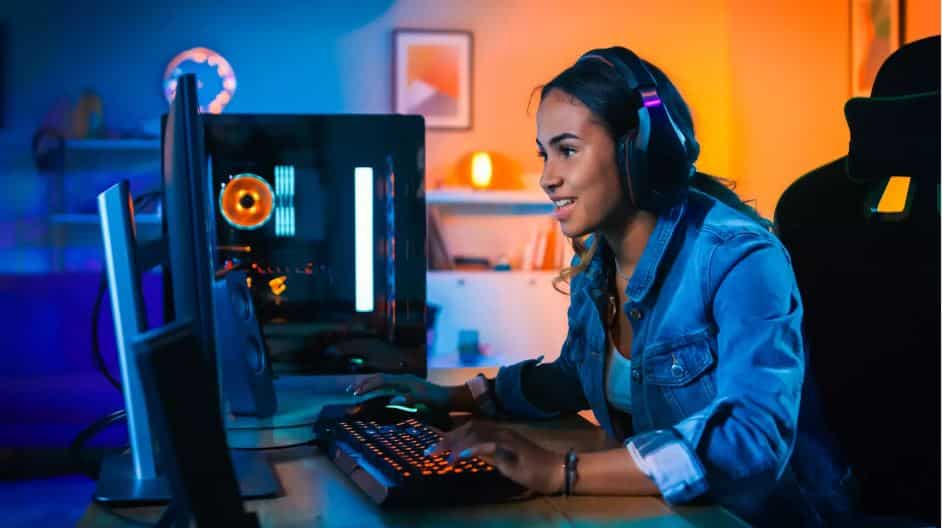
The Original PC Doctor offers nationwide Gaming Computer repairs, including in Adelaide. We offer many services, including virus and spyware removal, hardware sales and installation, general technology troubleshooting, disaster and data recovery, email configuration and setup, and many more. Get professional onsite Gaming Computer help from expert technicians in Adelaide at your home or work. Contact us today at 1300 723 628 to get in contact with your local Adelaide gaming computer repair technician.
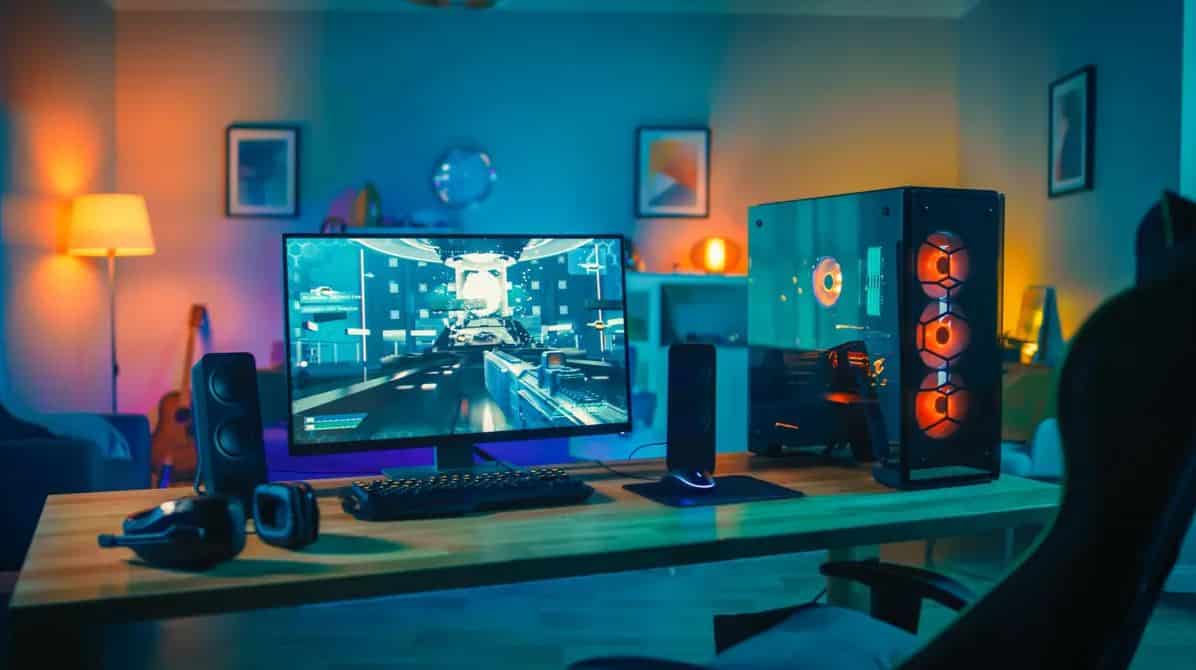
What Gaming Computer repair services does The Original PC Doctor provide in Adelaide?
- Gaming Computer and Network Security in Adelaide. Protect your data from online identity thieves.
- Gaming Computer Setup, Upgrades, and Installation in Adelaide. We come to you at your convenience.
- Gaming Computer Troubleshooting Services in Adelaide. We diagnose and fix performance issues.
- Gaming Computer Tune-Up Services in Adelaide. Optimize your gaming rig for peak performance.
- Data Backup and Transfer Services in Adelaide. Secure your valuable data.
- Data recovery in Adelaide. We recover lost data using leading-edge technology.
- Email setup and support in Adelaide. We help you set up, recover, and use your email.
- Gaming Computer and Gaming Laptop Troubleshooting in Adelaide. We fix any software or hardware issue.
- Hardware Installs and Gaming Computer Upgrade Services in Adelaide. Upgrade your components for better gaming.
- Gaming Computer Hardware Repairs in Adelaide. We replace faulty components like motherboards and RAM.
- Gaming Computer Repair Insurance Reports in Adelaide. We provide detailed reports for insurance claims.
- Operating System Install & Repair in Adelaide. We reinstall or repair your operating system.
- Software Setup and Installation in Adelaide. We install and configure your software.
- Network Setup in Adelaide. We set up fast and reliable networks.
- Setup a Wireless Home Network in Adelaide. We optimize your Wi-Fi for gaming.
- Network Sharing and Streaming in Adelaide. Share and stream content across your devices.
- Printer setup in Adelaide. We configure your printer for wireless printing and scanning.
- Gaming Computer Training in Adelaide. Learn how to maximize your technology.
- Virus, Spyware, and Malware Removal in Adelaide. We remove threats and secure your system.
- Professional, friendly Gaming Computer repairs at your home in Adelaide. We provide onsite repairs for your convenience.
Why choose The Original PC Doctor for all your troubleshooting and Gaming Computer repair needs in Adelaide?
Our expert technicians in Adelaide troubleshoot your Gaming Computer issues and offer repair options so you can get back to gaming quickly.
We offer same-day Gaming Computer and laptop repair services in Adelaide during weekdays, evenings, and weekends.
We guarantee our Adelaide technicians will find a solution to your problem. And if we don’t, you don’t pay – it’s that simple!
We can fix a wide range of issues on all major brands in Adelaide
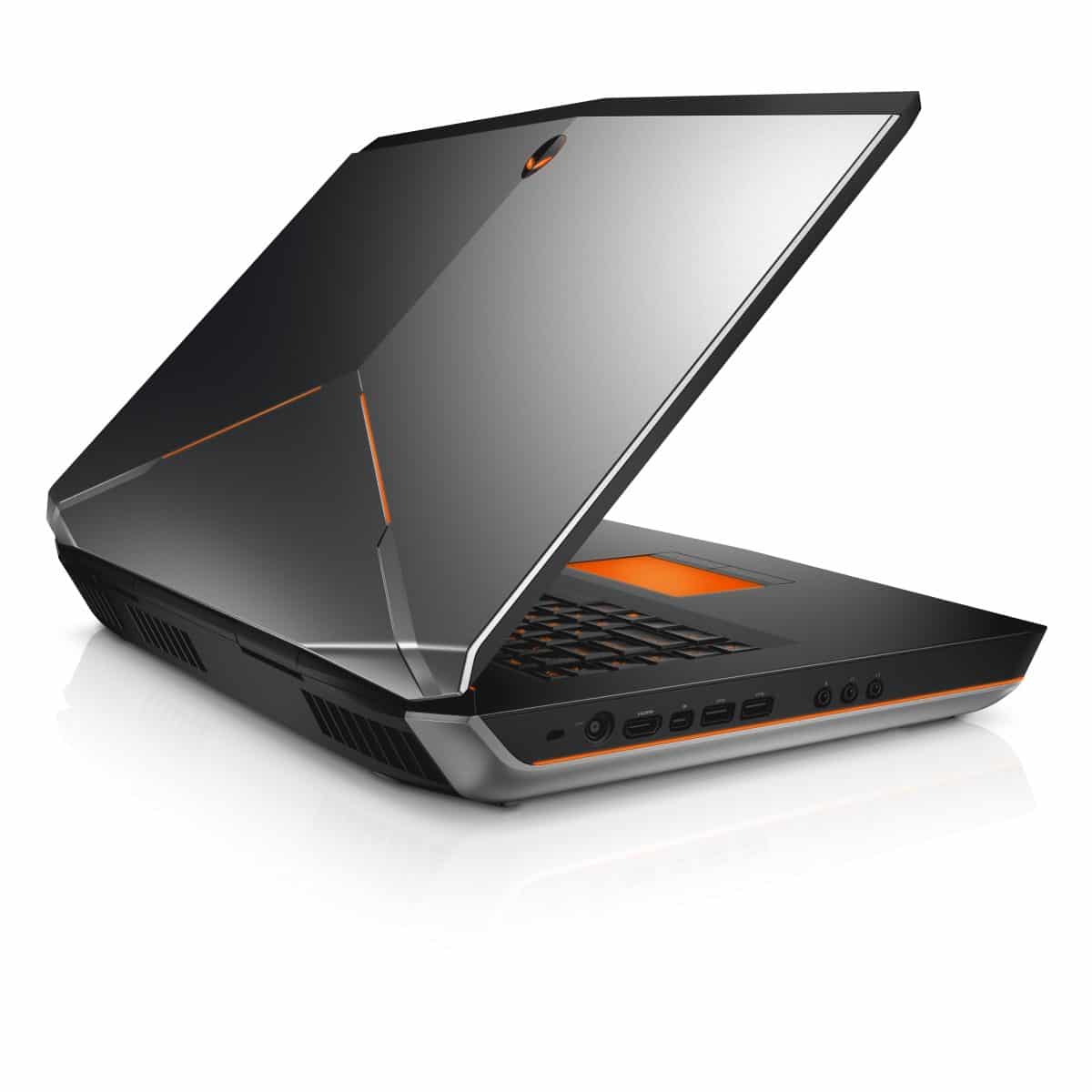
The Original PC Doctor, a leading Gaming Computer repair expert in Australia, services all major devices in Adelaide, including Dell Alienware, Metabox, Acer Predator, Dell XPS, Asus ROG, and GPU Mining Rigs.
Our experienced Gaming Computer technicians in Adelaide handle everything from virus removal to complex data recovery.
We offer a wide range of PC repair services in Adelaide to meet your needs, including device setup, PC tune-ups, hardware and software installation, and more!
Call 1300 723 628 or complete our online inquiry form to schedule an appointment with your local Gaming Computer repair technician in Adelaide.
Why choose The Original PC Doctor to repair your Gaming Computer in Adelaide?
- Expert Gaming Computer help, repairs, and support services in Adelaide.
- Weekday, evening, and weekend appointments at your convenience.
- Same-day service available in Adelaide! Call before 10 am on weekdays for same-day service.
- Remote support available throughout Australia.
- We fix gaming desktops, laptops, and other computing devices.
Why do our customers love The Original PC Doctor Gaming Computer repair service in Adelaide?
- Friendly, professional, and efficient service.
- Technicians arrive on time, even the same day you call!
- Easy booking and fair, competitive pricing.
Call 1300 723 628 or complete our online inquiry form today to schedule an appointment with a Gaming Computer repair technician in Adelaide!
Gaming PC FAQs
- How to build a gaming PC?
Building a gaming PC can be a rewarding experience, allowing you to customize the hardware to your specific needs and budget. Here’s a general guide to walk you through the process:
1. Planning and Budgeting:
- Determine your budget: This will guide your component selection and ensure you don’t overspend.
- Research components: Familiarize yourself with the different components (CPU, GPU, RAM, storage, etc.) and their functionalities. Look for benchmarks and reviews to compare options within your budget.
- Choose compatible parts: Ensure all the components you select are compatible with each other. Use online tools or retailer compatibility checkers to avoid compatibility issues during assembly.
2. Gathering the Components:
- Central Processing Unit (CPU): The brain of your PC, responsible for processing instructions. Consider factors like core count, clock speed, and compatibility with your motherboard.
- Graphics Processing Unit (GPU): Handles graphics rendering, crucial for gaming performance. Choose a GPU based on your desired resolution, frame rate, and game settings.
- Motherboard: The foundation that connects all the components. Select a motherboard compatible with your CPU, RAM, and other chosen components.
- Memory (RAM): Provides temporary storage for running programs. Aim for at least 16GB of RAM for smooth gaming performance.
- Storage: Choose a combination of Solid-state Drive (SSD) for fast boot times and application loading, and a Hard Disk Drive (HDD) for storing large game files.
- Power Supply Unit (PSU): Provides power to all components. Choose a PSU with sufficient wattage to handle your chosen hardware.
- Case: Houses all the components. Consider factors like size, cooling options, and aesthetics.
3. Assembly Process:
- Prepare your workspace: Ensure a clean, well-lit, and static-free environment to prevent damage to the components.
- Assemble the components outside the case: Carefully install the CPU, RAM, and cooler onto the motherboard according to the manufacturer’s instructions.
- Mount the motherboard and other components: Secure the motherboard in the case and install other components like storage drives, GPU, and power supply.
- Cable management: Properly route and organize cables to improve airflow and aesthetics inside the case.
- Connect peripherals: Connect your monitor, keyboard, mouse, and any other peripherals.
4. Software Installation:
- Install the operating system: You’ll need a separate purchase of an operating system like Windows 11.
- Install drivers: Download and install the latest drivers for your motherboard, graphics card, and other components from the manufacturer’s websites.
- Install additional software: Install your desired games, applications, and utilities.
Additional Tips:
- Watch video tutorials: Many online resources offer visual guides to building a gaming PC.
- Take your time: Don’t rush the process, and carefully follow the instructions to avoid mistakes.
- Anti-static precautions: Ground yourself and wear an anti-static wristband to prevent electrostatic discharge (ESD) damage to the components.
- Seek help if needed: If you encounter any difficulties during the process, don’t hesitate to consult online forums, communities, or tech support for assistance.
Building a gaming PC can be a fun and rewarding experience, allowing you to create a machine tailored to your specific needs and preferences. Remember to do your research, plan your budget, and enjoy the process!
- How much does it cost to run a gaming PC?
The cost of running a gaming PC depends on several factors, making it difficult to give a precise answer. However, here’s a breakdown of the key factors that influence the electricity consumption of a gaming PC, and how you can estimate the cost:
Factors affecting power consumption:
- Hardware:
- Power Supply Unit (PSU) Wattage: The PSU rating indicates its maximum power delivery capacity. Higher-end components like powerful GPUs and CPUs typically require PSUs with higher wattage ratings.
- CPU: Processors with more cores and higher clock speeds generally consume more power.
- GPU: Graphics cards are significant contributors to power consumption, especially when under heavy loads during gaming.
- Usage patterns:
- Gaming duration and intensity: The longer you play games and the more demanding the games are, the higher the power consumption.
- Background tasks: Running other programs alongside your games can also increase power usage.
Estimating the cost:
- Identify your PSU wattage: Check your PSU’s specifications or the label on the unit itself.
- Estimate your average gaming time per day: Consider your typical gaming habits.
- Research your electricity cost per kWh (kilowatt-hour): This information is usually available on your electricity bill or from your power provider’s website.
Here’s a simplified formula to estimate the daily cost:
Daily Cost = (PSU Wattage / 1000) * Average Gaming Time * Electricity Cost per kWh
Example:
- PSU Wattage: 750W
- Average Gaming Time: 2 hours
- Electricity Cost per kWh: $0.15
Daily Cost: (750W / 1000) * 2 hours * $0.15 = $0.23
Important notes:
- This is just an estimate, and the actual cost may vary depending on several factors mentioned earlier.
- This only considers the power consumption during gaming. If you use your PC for other tasks, factor in their power consumption as well.
- Modern hardware often features power-saving technologies that can help reduce overall energy usage.
Additional tips for reducing power consumption:
- Lower in-game graphics settings: While this might affect visual quality, it can significantly reduce the workload on your GPU and lower power consumption.
- Enable power-saving options in your operating system and graphics card settings.
- Close unused programs and background applications when not in use.
- Consider upgrading to more energy-efficient components when building or upgrading your PC.
By understanding the factors influencing power consumption and implementing these tips, you can optimize your gaming PC’s energy usage and potentially see a reduction in your electricity bill.
- How to play XBox games on PC?
There are two primary ways to play Xbox games on your PC:
1. Xbox Play Anywhere:
- This feature allows you to play certain Xbox games you’ve purchased digitally on both your Xbox console and your Windows 10/11 PC at no additional cost.
- Here’s how to check if a game is playable through Xbox Play Anywhere:
- Look for the Xbox Play Anywhere logo on the game listing on the Xbox Store or Microsoft Store.
- Visit the https://www.xbox.com/en-US/games/xbox-play-anywhere.
- Requirements:
- You need a Microsoft account associated with both your Xbox and PC.
- Your PC needs to meet the minimum system requirements for the specific game you want to play. These can be found on the Microsoft Store or Xbox Store page for the game.
- Steps to play:
- Download the Xbox app from the Microsoft Store on your PC.
- Sign in to your Microsoft account.
- Find the Xbox Play Anywhere game you want to play in your library or search for it in the Xbox app.
- Click “Install” to download and install the game on your PC.
- Once installed, launch the game from the Xbox app and start playing!
2. Xbox Cloud Gaming (formerly xCloud):
- This cloud gaming service allows you to stream Xbox games directly to your PC through a web browser or the Xbox app, without needing to download or install them locally.
- Requirements:
- You need a Microsoft account with an Xbox Game Pass Ultimate subscription.
- A reliable internet connection with a minimum download speed of 5 Mbps is recommended.
- A compatible web browser (Microsoft Edge, Google Chrome, or Safari) or the Xbox app for PC.
- Steps to play:
- Go to https://www.xbox.com/en-us/play in your web browser or launch the Xbox app on your PC.
- Sign in to your Microsoft account with an active Xbox Game Pass Ultimate subscription.
- Browse the library of available games and choose the one you want to play.
- Click “Play” to start streaming the game directly to your PC.
Here’s a quick comparison of the two methods:
Feature Xbox Play Anywhere Xbox Cloud Gaming (xCloud) Availability Requires download and installation Streamed directly, no download needed Cost Requires purchasing the game or having an Xbox Game Pass subscription Requires Xbox Game Pass Ultimate subscription Performance Relies on your PC hardware Relies on your internet connection speed and stability Game library Limited to specific Xbox Play Anywhere titles Wider selection of games is available through Xbox Game Pass Ultimate
Ultimately, the best way to play Xbox games on your PC depends on your preferences and circumstances. If you want to own the game and have the necessary hardware, Xbox Play Anywhere offers a good option. If you prioritize convenience and a wider game selection, and have a reliable internet connection, Xbox Cloud Gaming might be a better choice.
- How to optimize your pc for gaming?
Optimizing your PC for gaming involves making adjustments to both hardware and software to improve performance and create a smoother gaming experience. Here are some steps you can take:
Hardware Optimization:
- Update your graphics card drivers: Outdated drivers can lead to performance issues and bugs. Download and install the latest drivers from your graphics card manufacturer’s website (Nvidia or AMD).
- Consider overclocking (optional): Overclocking involves pushing your CPU or GPU to run at higher speeds than their default settings. This can lead to significant performance gains, but it also carries risks like overheating and potential damage to your hardware. Only attempt overclocking if you’re comfortable with the risks and have done your research on safe overclocking practices for your specific components.
- Ensure adequate cooling: Proper cooling is crucial for maintaining optimal performance and preventing overheating. Clean your dust filters regularly and ensure your case fans are functioning correctly. You might consider upgrading your CPU cooler or adding additional case fans if necessary.
- Enable high-performance power plan: Most operating systems offer different power plans, including a high-performance mode that prioritizes performance over power efficiency. Go to your power settings and activate the high-performance plan for gaming.
Software Optimization:
- Close unnecessary background applications: Background programs can consume system resources and impact gaming performance. Close any applications you’re not actively using before launching your game.
- Disable startup programs: Many programs automatically launch at startup, even if you don’t use them regularly. Disabling these programs can free up system resources and improve boot times.
- Adjust game graphics settings: Most games offer various graphics settings that affect visual quality and performance. Experiment with different settings to find a balance between visuals and performance that suits your preferences and hardware capabilities. Look for options like lowering resolution, anti-aliasing, and texture quality.
- Defragment your hard drive (if using HDD): Fragmentation can slow down your hard drive access times. While less relevant with modern SSDs, defragmenting your hard drive (if you’re still using one) can potentially improve performance.
- Consider upgrading your hardware (long-term): If your PC’s hardware is significantly outdated, even after optimisation, you might eventually need to consider upgrading components like your CPU, GPU, or RAM to achieve the desired gaming performance.
Additional Tips:
- Monitor your system performance: Use tools like Task Manager or performance monitoring software to identify potential bottlenecks or resource limitations in your system.
- Maintain a clean system: Regularly cleaning your PC’s case and components can help prevent dust buildup and improve cooling efficiency.
- Keep your operating system and applications updated: Updates often include performance improvements and bug fixes that can benefit your gaming experience.
Remember, the optimal approach to optimizing your PC for gaming depends on your specific hardware, software, and gaming preferences. Experiment with different settings and find what works best for you.
- How to check that your computer can run a game?
Here are two main ways to check if your computer can run a game:
1. Checking the game’s system requirements:
Every game has a minimum and recommended system requirements listed on its official website, store page, or game box. These requirements detail the hardware specifications (CPU, GPU, RAM, storage, etc.) your computer needs to meet in order to run the game at a certain level of performance.
Minimum requirements: These specs are the absolute bare minimum your system needs to have to run the game at the lowest settings and potentially lower resolutions. Meeting these might not guarantee a smooth or enjoyable experience, but the game should launch and function.
Recommended requirements: These specs represent the hardware recommended by the developers for an optimal gaming experience at the intended settings and resolution. Meeting or exceeding these specs is ideal for smooth gameplay.
Here’s how to find and compare your PC’s specs to the game’s requirements:
* **Find the game's system requirements**:

* Look for them on the game's official website, store page (like Steam, Epic Games Store, etc.), or the physical game box (if applicable). They might be listed under "System Requirements" or "Specs."

* **Check your computer's specs**:

* Open the **Start menu** and search for "System Information" (Windows) or "About This Mac" (macOS).

* This will display your computer's hardware information, including CPU, RAM, graphics card, etc.

* **Compare the specs**:

* Compare your computer's listed specs with the game's minimum and recommended requirements.

* If your specs **meet or exceed** the **minimum requirements**, the game should run, but performance might not be ideal.

* If your specs **meet or exceed** the **recommended requirements**, you can expect a smooth and enjoyable gaming experience.
2. Using online system requirement checkers:
- Websites like https://www.reddit.com/r/gaming/comments/4r097d/is_system_requirements_lab_a_safe_website/ offer a convenient way to check game compatibility.
- These websites allow you to enter the game title or browse their database.
- They then scan your computer’s hardware using a downloadable tool or online analysis and compare it to the game’s requirements.
- The website will provide a compatibility verdict, indicating whether your PC can run the game and at what level of performance.
Remember, these methods are not foolproof, and actual performance might vary depending on factors like game optimisation, background applications, and individual system configurations. However, they provide a good starting point to assess your computer’s capabilities for running a specific game.
- PC cannot run a game?
Gaming PC FAQs
- How to build a gaming PC?
Building a gaming PC can be a rewarding experience, allowing you to customize the hardware to your specific needs and budget. Here’s a general guide to walk you through the process:
1. Planning and Budgeting:
- Determine your budget: This will guide your component selection and ensure you don’t overspend.
- Research components: Familiarize yourself with the different components (CPU, GPU, RAM, storage, etc.) and their functionalities. Look for benchmarks and reviews to compare options within your budget.
- Choose compatible parts: Ensure all the components you select are compatible with each other. Use online tools or retailer compatibility checkers to avoid compatibility issues during assembly.
2. Gathering the Components:
- Central Processing Unit (CPU): The brain of your PC, responsible for processing instructions. Consider factors like core count, clock speed, and compatibility with your motherboard.
- Graphics Processing Unit (GPU): Handles graphics rendering, crucial for gaming performance. Choose a GPU based on your desired resolution, frame rate, and game settings.
- Motherboard: The foundation that connects all the components. Select a motherboard compatible with your CPU, RAM, and other chosen components.
- Memory (RAM): Provides temporary storage for running programs. Aim for at least 16GB of RAM for smooth gaming performance.
- Storage: Choose a combination of Solid-state Drive (SSD) for fast boot times and application loading, and a Hard Disk Drive (HDD) for storing large game files.
- Power Supply Unit (PSU): Provides power to all components. Choose a PSU with sufficient wattage to handle your chosen hardware.
- Case: Houses all the components. Consider factors like size, cooling options, and aesthetics.
3. Assembly Process:
- Prepare your workspace: Ensure a clean, well-lit, and static-free environment to prevent damage to the components.
- Assemble the components outside the case: Carefully install the CPU, RAM, and cooler onto the motherboard according to the manufacturer’s instructions.
- Mount the motherboard and other components: Secure the motherboard in the case and install other components like storage drives, GPU, and power supply.
- Cable management: Properly route and organize cables to improve airflow and aesthetics inside the case.
- Connect peripherals: Connect your monitor, keyboard, mouse, and any other peripherals.
4. Software Installation:
- Install the operating system: You’ll need a separate purchase of an operating system like Windows 11.
- Install drivers: Download and install the latest drivers for your motherboard, graphics card, and other components from the manufacturer’s websites.
- Install additional software: Install your desired games, applications, and utilities.
Additional Tips:
- Watch video tutorials: Many online resources offer visual guides to building a gaming PC.
- Take your time: Don’t rush the process, and carefully follow the instructions to avoid mistakes.
- Anti-static precautions: Ground yourself and wear an anti-static wristband to prevent electrostatic discharge (ESD) damage to the components.
- Seek help if needed: If you encounter any difficulties during the process, don’t hesitate to consult online forums, communities, or tech support for assistance.
Building a gaming PC can be a fun and rewarding experience, allowing you to create a machine tailored to your specific needs and preferences. Remember to do your research, plan your budget, and enjoy the process!
- How much does it cost to run a gaming PC?
The cost of running a gaming PC depends on several factors, making it difficult to give a precise answer. However, here’s a breakdown of the key factors that influence the electricity consumption of a gaming PC, and how you can estimate the cost:
Factors affecting power consumption:
- Hardware:
- Power Supply Unit (PSU) Wattage: The PSU rating indicates its maximum power delivery capacity. Higher-end components like powerful GPUs and CPUs typically require PSUs with higher wattage ratings.
- CPU: Processors with more cores and higher clock speeds generally consume more power.
- GPU: Graphics cards are significant contributors to power consumption, especially when under heavy loads during gaming.
- Usage patterns:
- Gaming duration and intensity: The longer you play games and the more demanding the games are, the higher the power consumption.
- Background tasks: Running other programs alongside your games can also increase power usage.
Estimating the cost:
- Identify your PSU wattage: Check your PSU’s specifications or the label on the unit itself.
- Estimate your average gaming time per day: Consider your typical gaming habits.
- Research your electricity cost per kWh (kilowatt-hour): This information is usually available on your electricity bill or from your power provider’s website.
Here’s a simplified formula to estimate the daily cost:
Daily Cost = (PSU Wattage / 1000) * Average Gaming Time * Electricity Cost per kWhExample:
- PSU Wattage: 750W
- Average Gaming Time: 2 hours
- Electricity Cost per kWh: $0.15
Daily Cost: (750W / 1000) * 2 hours * $0.15 = $0.23
Important notes:
- This is just an estimate, and the actual cost may vary depending on several factors mentioned earlier.
- This only considers the power consumption during gaming. If you use your PC for other tasks, factor in their power consumption as well.
- Modern hardware often features power-saving technologies that can help reduce overall energy usage.
Additional tips for reducing power consumption:
- Lower in-game graphics settings: While this might affect visual quality, it can significantly reduce the workload on your GPU and lower power consumption.
- Enable power-saving options in your operating system and graphics card settings.
- Close unused programs and background applications when not in use.
- Consider upgrading to more energy-efficient components when building or upgrading your PC.
By understanding the factors influencing power consumption and implementing these tips, you can optimize your gaming PC’s energy usage and potentially see a reduction in your electricity bill.
- Hardware:
- How to play XBox games on PC?
There are two primary ways to play Xbox games on your PC:
1. Xbox Play Anywhere:
- This feature allows you to play certain Xbox games you’ve purchased digitally on both your Xbox console and your Windows 10/11 PC at no additional cost.
- Here’s how to check if a game is playable through Xbox Play Anywhere:
- Look for the Xbox Play Anywhere logo on the game listing on the Xbox Store or Microsoft Store.
- Visit the https://www.xbox.com/en-US/games/xbox-play-anywhere.
- Requirements:
- You need a Microsoft account associated with both your Xbox and PC.
- Your PC needs to meet the minimum system requirements for the specific game you want to play. These can be found on the Microsoft Store or Xbox Store page for the game.
- Steps to play:
- Download the Xbox app from the Microsoft Store on your PC.
- Sign in to your Microsoft account.
- Find the Xbox Play Anywhere game you want to play in your library or search for it in the Xbox app.
- Click “Install” to download and install the game on your PC.
- Once installed, launch the game from the Xbox app and start playing!
2. Xbox Cloud Gaming (formerly xCloud):
- This cloud gaming service allows you to stream Xbox games directly to your PC through a web browser or the Xbox app, without needing to download or install them locally.
- Requirements:
- You need a Microsoft account with an Xbox Game Pass Ultimate subscription.
- A reliable internet connection with a minimum download speed of 5 Mbps is recommended.
- A compatible web browser (Microsoft Edge, Google Chrome, or Safari) or the Xbox app for PC.
- Steps to play:
- Go to https://www.xbox.com/en-us/play in your web browser or launch the Xbox app on your PC.
- Sign in to your Microsoft account with an active Xbox Game Pass Ultimate subscription.
- Browse the library of available games and choose the one you want to play.
- Click “Play” to start streaming the game directly to your PC.
Here’s a quick comparison of the two methods:
Feature Xbox Play Anywhere Xbox Cloud Gaming (xCloud) Availability Requires download and installation Streamed directly, no download needed Cost Requires purchasing the game or having an Xbox Game Pass subscription Requires Xbox Game Pass Ultimate subscription Performance Relies on your PC hardware Relies on your internet connection speed and stability Game library Limited to specific Xbox Play Anywhere titles Wider selection of games is available through Xbox Game Pass Ultimate Ultimately, the best way to play Xbox games on your PC depends on your preferences and circumstances. If you want to own the game and have the necessary hardware, Xbox Play Anywhere offers a good option. If you prioritize convenience and a wider game selection, and have a reliable internet connection, Xbox Cloud Gaming might be a better choice.
- How to optimize your pc for gaming?
Optimizing your PC for gaming involves making adjustments to both hardware and software to improve performance and create a smoother gaming experience. Here are some steps you can take:
Hardware Optimization:
- Update your graphics card drivers: Outdated drivers can lead to performance issues and bugs. Download and install the latest drivers from your graphics card manufacturer’s website (Nvidia or AMD).
- Consider overclocking (optional): Overclocking involves pushing your CPU or GPU to run at higher speeds than their default settings. This can lead to significant performance gains, but it also carries risks like overheating and potential damage to your hardware. Only attempt overclocking if you’re comfortable with the risks and have done your research on safe overclocking practices for your specific components.
- Ensure adequate cooling: Proper cooling is crucial for maintaining optimal performance and preventing overheating. Clean your dust filters regularly and ensure your case fans are functioning correctly. You might consider upgrading your CPU cooler or adding additional case fans if necessary.
- Enable high-performance power plan: Most operating systems offer different power plans, including a high-performance mode that prioritizes performance over power efficiency. Go to your power settings and activate the high-performance plan for gaming.
Software Optimization:
- Close unnecessary background applications: Background programs can consume system resources and impact gaming performance. Close any applications you’re not actively using before launching your game.
- Disable startup programs: Many programs automatically launch at startup, even if you don’t use them regularly. Disabling these programs can free up system resources and improve boot times.
- Adjust game graphics settings: Most games offer various graphics settings that affect visual quality and performance. Experiment with different settings to find a balance between visuals and performance that suits your preferences and hardware capabilities. Look for options like lowering resolution, anti-aliasing, and texture quality.
- Defragment your hard drive (if using HDD): Fragmentation can slow down your hard drive access times. While less relevant with modern SSDs, defragmenting your hard drive (if you’re still using one) can potentially improve performance.
- Consider upgrading your hardware (long-term): If your PC’s hardware is significantly outdated, even after optimisation, you might eventually need to consider upgrading components like your CPU, GPU, or RAM to achieve the desired gaming performance.
Additional Tips:
- Monitor your system performance: Use tools like Task Manager or performance monitoring software to identify potential bottlenecks or resource limitations in your system.
- Maintain a clean system: Regularly cleaning your PC’s case and components can help prevent dust buildup and improve cooling efficiency.
- Keep your operating system and applications updated: Updates often include performance improvements and bug fixes that can benefit your gaming experience.
Remember, the optimal approach to optimizing your PC for gaming depends on your specific hardware, software, and gaming preferences. Experiment with different settings and find what works best for you.
- How to check that your computer can run a game?
Here are two main ways to check if your computer can run a game:
1. Checking the game’s system requirements:
Every game has a minimum and recommended system requirements listed on its official website, store page, or game box. These requirements detail the hardware specifications (CPU, GPU, RAM, storage, etc.) your computer needs to meet in order to run the game at a certain level of performance.
Minimum requirements: These specs are the absolute bare minimum your system needs to have to run the game at the lowest settings and potentially lower resolutions. Meeting these might not guarantee a smooth or enjoyable experience, but the game should launch and function.
Recommended requirements: These specs represent the hardware recommended by the developers for an optimal gaming experience at the intended settings and resolution. Meeting or exceeding these specs is ideal for smooth gameplay.
Here’s how to find and compare your PC’s specs to the game’s requirements:
* **Find the game's system requirements**:
* Look for them on the game's official website, store page (like Steam, Epic Games Store, etc.), or the physical game box (if applicable). They might be listed under "System Requirements" or "Specs."
* **Check your computer's specs**:
* Open the **Start menu** and search for "System Information" (Windows) or "About This Mac" (macOS).
* This will display your computer's hardware information, including CPU, RAM, graphics card, etc.
* **Compare the specs**:
* Compare your computer's listed specs with the game's minimum and recommended requirements.
* If your specs **meet or exceed** the **minimum requirements**, the game should run, but performance might not be ideal.
* If your specs **meet or exceed** the **recommended requirements**, you can expect a smooth and enjoyable gaming experience.2. Using online system requirement checkers:
- Websites like https://www.reddit.com/r/gaming/comments/4r097d/is_system_requirements_lab_a_safe_website/ offer a convenient way to check game compatibility.
- These websites allow you to enter the game title or browse their database.
- They then scan your computer’s hardware using a downloadable tool or online analysis and compare it to the game’s requirements.
- The website will provide a compatibility verdict, indicating whether your PC can run the game and at what level of performance.
Remember, these methods are not foolproof, and actual performance might vary depending on factors like game optimisation, background applications, and individual system configurations. However, they provide a good starting point to assess your computer’s capabilities for running a specific game.
- PC cannot run a game?
If your gaming rig is beyond repair, consider recycling it. For computer recycling in Australia, contact Computers & Electronics Recycling Australia.